
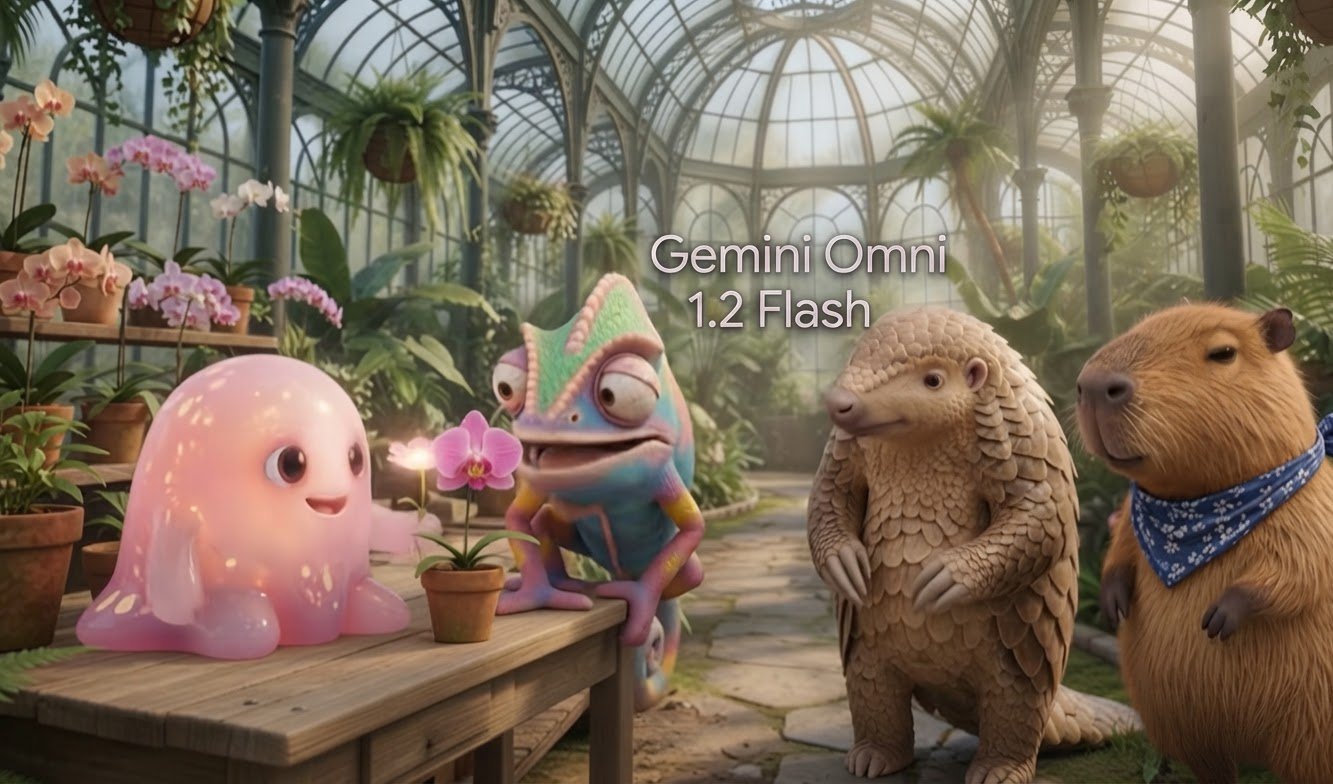
Gemini Omni 1.2 Flash is Google’s AI video model for generating clips up to 15 seconds long, with reference images, motion guidance, audio references, and conversational editing. A 15-second clip at 720p costs approximately $1.04 in video output charges.
I see its strongest use case in short product ads and social clips: enough time for an opening, a demonstration, and a closing message without stitching together separate generations. The other important improvement concerns cost. You can create inexpensive drafts, choose the strongest result, and upscale that exact clip.
That does not make Omni the cheapest model or establish it as the highest-quality option. Its value depends on whether longer generations, reference fidelity, and targeted edits solve your production problems.
Pricing context: The figures below reflect list rates checked on November 5, 2026. They cover video output unless noted. Prompt, reference-image, and reasoning token charges add to generation costs. Check Google’s pricing documentation before budgeting a project.
Key Takeaways
- A 15-second Omni 1.2 clip costs about $1.04 at 720p before additional token charges.
- Explicitly set duration and portrait orientation because defaults remain 10 seconds and landscape.
- Low-resolution drafting followed by one upscale can substantially reduce the cost of multiple attempts.
- Reference-driven ads look promising, but independent quality results remain unavailable in the launch snapshot.
What Gemini Omni 1.2 Flash Changes
Compared with Omni 1.1, the headline changes are a longer maximum generation, a lower per-second price, and standalone upscaling.
- Longer clips: Standard generation supports whole-second durations from 3 to 15 seconds, compared with the earlier 10-second ceiling.
- Lower output rates: At the cited 720p rates, the per-second cost drops by about 30%, from roughly ten cents to seven cents.
- Reusable drafts: Version 1.2 can upscale an existing clip, so choosing a low-resolution draft no longer requires a fresh generation for the final version.
- Full-length editing: Natural-language edits can revise a complete 15-second clip.
Google’s demonstrations also show better adherence to some visual instructions. A ramen-shop example follows a camera move more effectively, while a typography example preserves more of the reference design’s materials and construction.
I treat those examples as evidence of specific capabilities, not proof that every prompt will improve. At the pricing snapshot, Omni 1.2 had no independent quality score.
Set These Options Before Your First Generation
The new maximum length does not change the default output. An application that leaves the settings untouched still produces a 10-second landscape clip at 720p.
For a vertical social ad, I would make these choices explicit:
- Duration: Request 15 seconds if the concept needs the full length.
- Aspect ratio: Select 9:16 portrait for a vertical Reel or TikTok.
- Draft resolution: Choose 360p for inexpensive exploration, or start at 720p if the final deliverable needs 4K.
- References: Supply the appearance and movement guidance the concept actually needs.
This matters especially for existing integrations. A model upgrade can lower your bill without giving your application longer clips unless you change its duration request.
Not Every Mode Supports 15 Seconds
Two workflows retain shorter limits:
- First-and-last-frame interpolation: Clips that fill the gap between supplied opening and closing frames support 3 to 10 seconds.
- Extensions: Each extension adds at most 10 seconds.
Motion-reference capacity also changes with duration. Outputs from 11 to 15 seconds accept one motion-reference clip, up to three seconds long. Outputs of 10 seconds or less accept up to three motion-reference clips.
I would choose the duration after checking those requirements. A shorter clip may offer more useful motion control than a longer one.
How Much Does Gemini Omni 1.2 Flash Cost?
Resolution makes a substantial difference to a 15-second generation:
- 360p: Approximately $0.35.
- 720p: Approximately $1.04.
- 1080p: Approximately $1.56.
The familiar “about one dollar” figure therefore refers to 720p, not every output setting. A 1080p attempt costs more than four times as much as a 360p draft.
Budget for Attempts, Not Just the Final Clip
A usable result may require several attempts. The useful comparison concerns the total cost of finding that result, rather than the price of one successful generation.
Using the cited rates:
- Five 15-second generations at 1080p: Approximately $7.80.
- Five 360p drafts plus one upscale of the selected clip: Approximately $2.80.
That draft-first example cuts the output bill by roughly two-thirds. Omni 1.1 supported low-resolution drafting but lacked standalone upscaling, which made those drafts less useful as final-production assets.
The 4K exception matters: A 360p draft cannot upscale to 4K. For a 4K deliverable, start at 720p and upscale only the selected result.
Editing Does Not Mean Discounted Output
A targeted edit can save a promising take, but Google returns a complete clip of the same length and charges for those returned seconds. Based on the cited price-sheet interpretation, a 15-second edit at 720p costs approximately the same $1.04 as a fresh generation.
I would use editing to protect a good performance or composition, not as a cheaper generation mode.
Google charges separately for prompt inputs, reference images, and reasoning tokens. Upscaling differs: Google’s documentation specifies no input-token charge for that operation, although output charges still apply.
A Practical Workflow for a 15-Second Product Ad
I would organize production around three decisions: what must remain accurate, what action must happen, and which draft deserves finishing.
1. Define the Non-Negotiable Details
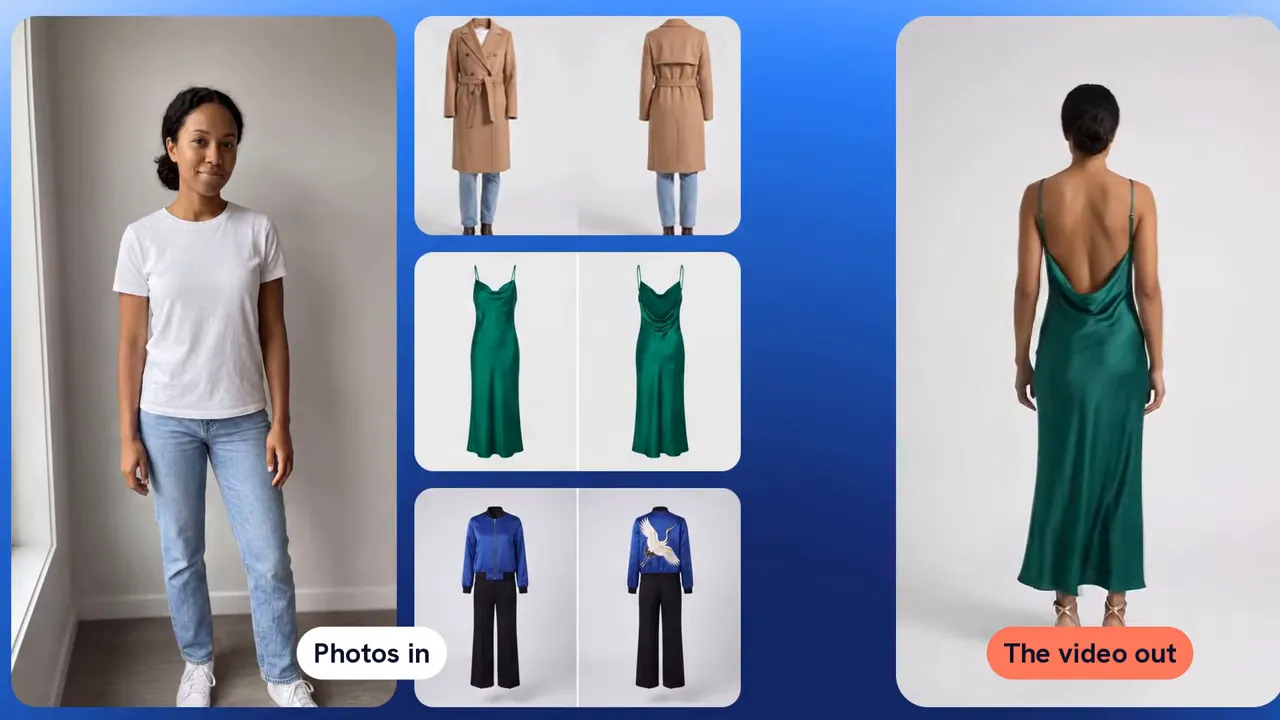
Before generating, list the details that would cause you to reject the result. For a clothing ad, that might include the person’s appearance, garment silhouette, back embroidery, and the way the fabric moves during a turn.
Google’s try-on demonstration uses a person reference alongside front and back outfit views. The example preserves a crane design on the back of a blue jacket when the character turns away. That illustrates why a rear product view can matter as much as a front view.
2. Keep the Sequence Manageable
As a planning framework, I would give a 15-second concept three jobs:
- Opening: Establish the subject or product quickly.
- Demonstration: Show the turn, reveal, transformation, or other essential action.
- Closing: Leave enough time for the final product view or message.
This framework does not require one uninterrupted camera shot. A single generation can contain several planned shots. Google’s bee explainer, for example, moves through four instructional views within one generated sequence.
3. Draft, Inspect, Then Finish
Generate at the appropriate draft resolution and judge the actual requirements before upscaling:
- Does the requested action happen?
- Does the face remain consistent through turns and cuts?
- Do product details match the references?
- Does the camera complete the intended movement?
- Do labels remain legible and correctly spelled?
- Does the audio fit the scene?
If the overall take works but one element fails, try a focused edit. If the core action or structure fails, reconsider the prompt or generate another draft. Upscaling improves resolution; it does not replace that editorial check.
Use References for Appearance, Motion, and Voice
Reference inputs serve different purposes. I would separate them rather than expect a product photograph to communicate movement or a motion clip to establish precise clothing details.
Appearance References
Google’s developer guide permits up to six reference images per request, including up to three images for the same character. Multiple angles can help establish faces, clothing, and objects across shots.
For two characters, allocating three images to each uses the full allowance. For a product-focused sequence, consider how many slots you need for character identity versus product details. Reference capacity remains finite, so choose images that answer distinct visual questions.
Motion References
A motion-reference clip supplies movement guidance. Google demonstrates this distinction by transferring an octopus’s movement into a dancer’s flowing gown.
Remember the duration trade-off: one motion reference for an 11-to-15-second output, versus up to three for an output of 10 seconds or less.
Voice References
Google’s multi-character audio example assigns short voice samples to individual characters and matches their mouth movements to speech. However, Google Cloud places audio-reference access behind an allowlist.
I would confirm approval before designing an application around custom voice samples. A demonstration of the feature does not mean every developer account can use it.
Why Fewer Clip Joins Can Improve Continuity
The extra five seconds matter when they eliminate a second generation. Every extension or stitched clip introduces another point where appearance, lighting, scenery, or sound can change.
In one reported Omni 1.1 experiment, repeated extensions produced a 40-second fox sequence. The fox remained recognizable, but background details and lighting shifted at the joins.
Extensions use the final 10 seconds as context rather than the entire accumulated sequence. That limited look-back helps explain why an element can disappear or change even when the main character survives.
A single generation removes an extension boundary, not every consistency problem. Google’s continuous-camera examples demonstrate the potential for long, coherent movement, but you still need to inspect the result.
I would also distinguish a planned cut from an accidental mismatch. Several intentional shots within one generation can work well; an unplanned change in a product or setting can undermine the ad.
Editing Capabilities and Restrictions
Conversational editing lets you request a specific change while aiming to preserve the rest of the clip. Google demonstrates background replacements around a knight and queen while retaining their faces, performances, and armor highlights.
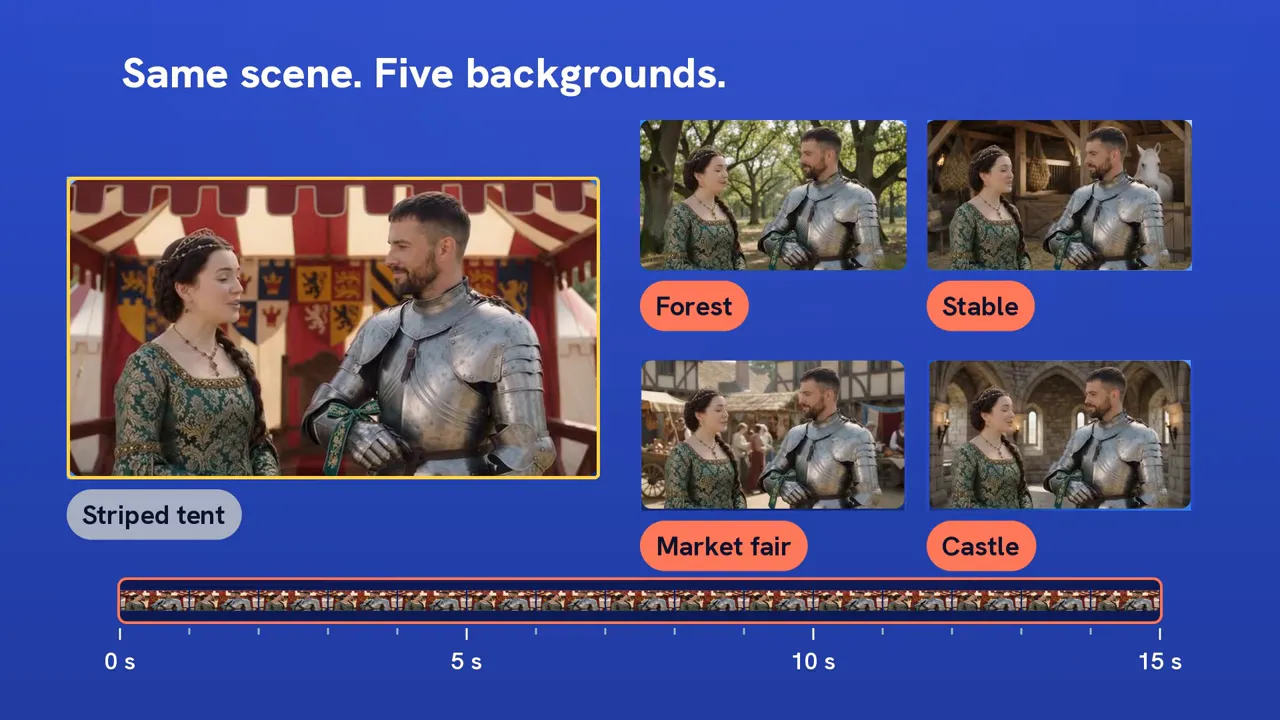
I would make edit requests narrow and inspect supposedly unchanged details afterward. Google still identifies complete consistency through edits as a challenge.
Other practical restrictions include:
- Stored edits: Google keeps stored editing interactions available for up to seven days.
- Regional limits: Editing or extending uploaded clips is unavailable in the European Economic Area, the UK, and Switzerland. Google distinguishes those uploads from model-generated clips, which remain eligible for editing.
- Recognizable people: Google restricts uploads and edits involving certain recognizable people. Check the applicable rules before preparing likeness-based assets.
Gemini Omni 1.2 Flash vs. Pika, MiniMax, Kling, and Veo
I would compare both output price and the number of generations needed to reach the target length. The November 5, 2026 snapshot gives these approximate costs:
- Pika H3 Flex: $0.30 for 15 seconds at 768p, the least expensive option in this comparison.
- Gemini Omni 1.2 Flash: $1.04 for 15 seconds at 720p.
- MiniMax H3: $1.20 for 15 seconds at 768p.
- Kling 4.0 Flash: $1.41 for 15 seconds at 720p.
- Kling 4.0: $2.36 for 15 seconds at 720p, with support for generations up to 30 seconds.
- Veo 3.1 Lite: About $0.80 for two eight-second clips, followed by assembly and trimming.
- Veo 3.1 Fast: About $1.60 for the same two-clip approach.
These figures do not establish equal quality, exact resolution parity, or identical features. Veo’s eight-second ceiling also means a different workflow for a 15-second deliverable.
My shortlist would depend on the job: Pika for low-cost volume, full Kling for a generation longer than 15 seconds, and Omni for testing reference-driven short ads with editable takes.
What I Would Test Before Committing
Google describes Omni 1.2 as faster without publishing a specific generation-time improvement in the supplied launch information. Older Omni 1.1 timing tests cannot establish 1.2’s speed.
The same caution applies to quality. Earlier leaderboards disagreed about Omni 1.1, and the snapshot contains no independent 1.2 score. Google also acknowledges continuing difficulty with fast sports action, rapid script changes, complex physics, exact text, and consistency through edits.
For assembled sequences, check sound levels too. One Omni 1.1 tester reported roughly 27 decibels of loudness variation between calls. That does not prove 1.2 has the same problem, but it gives a sensible inspection point.
My recommendation: Start with one representative ad, use references for every commercially important detail, draft at low resolution, and upscale only after the action and product accuracy pass inspection. Omni’s strongest argument is that workflow, not an unproven claim to universal superiority.
Frequently Asked Questions
Can I try Gemini Omni 1.2 Flash without coding?
Yes. Google says Google Vids includes 15-second clip generation at no additional cost with a Google account. That consumer access differs from paid API usage.
Do Omni 1.1 developers need to migrate manually?
Google’s announced transition routes Omni 1.1 requests to Omni 1.2 starting December 3, 2026, at the lower rates. I would still review duration settings, since automatic routing does not change the 10-second default.
Does a 15-second generation have to use one continuous shot?
No. One generation can contain multiple planned shots. The benefit comes from avoiding separately generated segments and their matching requirements, not from prohibiting cuts.

Mohit Sharma
Mohit Sharma is the Founder of AISEOToolshub and an SEO & Digital Marketing Expert with over 6 years of experience helping websites improve their search visibility and organic growth. Mohit closely follows the latest developments in artificial intelligence and regularly shares practical insights on new AI tools, industry updates, and breaking AI news.
Discover more from AI News Hub
Subscribe to get the latest posts sent to your email.